Why Communication Is the Hidden Driver of Construction Sales
Construction sales isn't just about submitting the best bid. It's about relationships, responsiveness, and staying top of mind with the GCs and owners who are handing out work. Often, the contractor who follows up one more time wins the job. The estimator who responds first gets the next bid invite.
But most construction teams are working against themselves. Communication is scattered across individual inboxes that only one person can see, which means the moment that person is on a job site, out sick, or leaves the company, the whole thread of a relationship goes dark. This is one of the biggest reasons construction sales teams lose deals they should be winning — not on price or scope, but on silence.
A CRM that centralizes your communication fixes this at the root.
Step 1: Connect Your Email (Gmail or Outlook)
The first thing you'll want to do in Followup CRM is connect your email account. This single step unlocks most of Followup CRM’s communication features — and quickly becomes part of your team’s daily workflow.
To connect your email, navigate to the top right of your Followup CRM account, click your name, and go to My Settings. Scroll down to User External Email and you'll see options to connect Gmail (Google) or Outlook/Office 365.
Not sure where to start? The Followup CRM support center has step-by-step guides for both:
- Gmail Integration
- Outlook Integration
- How to Set Up Your Email Integration + Notifications
- Create a new project directly from an email — the AI reads the body of the email and auto-fills your project fields like name and address
- Create a new contact from an email with fields pre-filled
- Search for an existing project and sync that email thread to it in one click
- View and update project details without ever opening a browser tab
- Sync documents from an email directly into your project's document folder — eliminating double-entry for attachments
- See all scheduled activities across projects in one feed
- View a calendar of upcoming deadlines and touchpoints
- Add comments and send emails tied to specific projects — all without leaving the page
- Complete activities with a single checkbox click
Once you're connected, emails sent from within Followup CRM go through your actual email account — so replies come back to your inbox and show up in the CRM. Your clients never notice a difference. Your team, however, sees everything.
Step 2: Send Emails Directly From Your Project Page
Once your email is connected, you don't need to leave Followup CRM to communicate with clients. Here are a few ways to send emails right from a project page:
From the contact shortcut: At the top of any project, you'll see a small email icon next to your contact's name. Click it and an email compose window pops up instantly — no switching tabs, no copy-pasting addresses.
From the contact record in the project: Scroll down the project page to the company/contact section. Clicking directly on a contact's email address will open a compose window as well.
From the External Email section: This is where the real magic happens. The External Email section on a project page is a dedicated inbox for all communication related to that specific project. You can compose emails from here, and any replies that come back will automatically thread into the same section. You and your teammates can see the full conversation without anyone having to forward anything.
Want a deeper look at how this works? Check out How to Track Email Exchanges in Followup or How do I Send an Email in Followup CRM? in the help center.
Step 3: Pull Existing Email Threads Into the CRM
Maybe you've already been emailing back and forth with a client before you had everything set up in the CRM. No problem. Followup makes it easy to bring those existing conversations in.
When you compose a new email from a project's External Email section, you'll notice a tracking number in the subject line. Copy that tracking number and paste it into the subject line of any existing email thread with that client — then send it. From that point on, every email in that thread (sent and received) will mirror into Followup. You'll see it in your inbox and in the project. Your whole team sees it too.
This is particularly useful when you're onboarding mid-project or trying to get a team member up to speed on a deal without sending them a wall-of-text summary.
For Outlook Users: The Followup CRM Add-In Is a Game Changer
If your team works primarily in Outlook, the Followup CRM Outlook Add-In deserves a special mention — because it takes the integration to a whole other level.
After you set up the Microsoft Outlook Plugin, a Followup CRM panel appears right inside Outlook. From that panel, you can:
You can also sync individual emails or entire email threads to a contact rather than a project, which is handy for pre-project relationship building. Here's a help article on exactly that: How to sync an email or email thread to a Contact via the Outlook Plugin.
Want to get a full picture of what the plugin can do? The Outlook Plugin Overview is a great place to start.
Use Email Templates to Follow Up Faster (Without Sounding Robotic)
Following up is one of the most important — and most neglected — parts of the construction sales process. The usual excuse is time. Personalized follow-ups take time. But templates change the equation.
Inside Followup CRM, you can create email templates for your most common outreach scenarios: checking in after a site visit, following up on a submitted proposal, touching base after bid results, and more.
A good template gives you a starting point — something like "Hey [First Name], just wanted to follow up on [Project Name] and see if you had any questions on our proposal..." — that you can send in 30 seconds or customize in two minutes when the project warrants it. You get the consistency of a follow-up system with the flexibility to personalize when it matters.
This is one of the simplest ways to make sure follow-ups actually happen instead of falling through the cracks. If you want to go deeper on how email fits into a broader outreach strategy, Email Marketing for Construction Companies is worth a read.
Manage Sales Relationships Before a Project Even Exists
Not every conversation starts with an active project. Sometimes you're nurturing a relationship with a GC or owner, hoping to get on their bid list. Followup CRM handles this too — and it's something a lot of new users don't discover right away.
From the Contacts section, you can pull up any individual contact and manage communication with them independent of any project. You can send emails, set activity reminders (phone call, lunch meeting, birthday email — whatever your sales cadence calls for), and log notes — all tied to that person.
This is especially useful for business development teams who are actively building relationships before opportunities come in. It keeps you organized and ensures that "just checking in" touchpoints don't get lost in the shuffle of active bids.
Want to keep your pipeline organized as it grows? Having a place to manage pre-project contacts is a big piece of that puzzle.
Keep Your Team Aligned With Project Comments
Client communication is only half the picture. The other half is internal — keeping your estimators, account managers, and project coordinators on the same page without a never-ending string of texts and hallway conversations.
Project Comments in Followup CRM are built for exactly this. At the bottom of every project page, any team member can drop a comment — paste in bid results, flag a missing detail, ask a question, upload a screenshot — and tag specific teammates. Tagged teammates get an email notification and an in-app alert with a link directly to the project.
The result: no "can you come to my office real quick?", no "I thought you told me that yesterday", no tasks that disappear into the void. It's all threaded, timestamped, and searchable. You can even pin important comments to the top of a project so critical information is always visible.
For teams managing a heavy bid load, this is the kind of thing that separates high-performing construction sales teams from everyone else — not talent, but systems.
See Everything at a Glance With the Activities Page
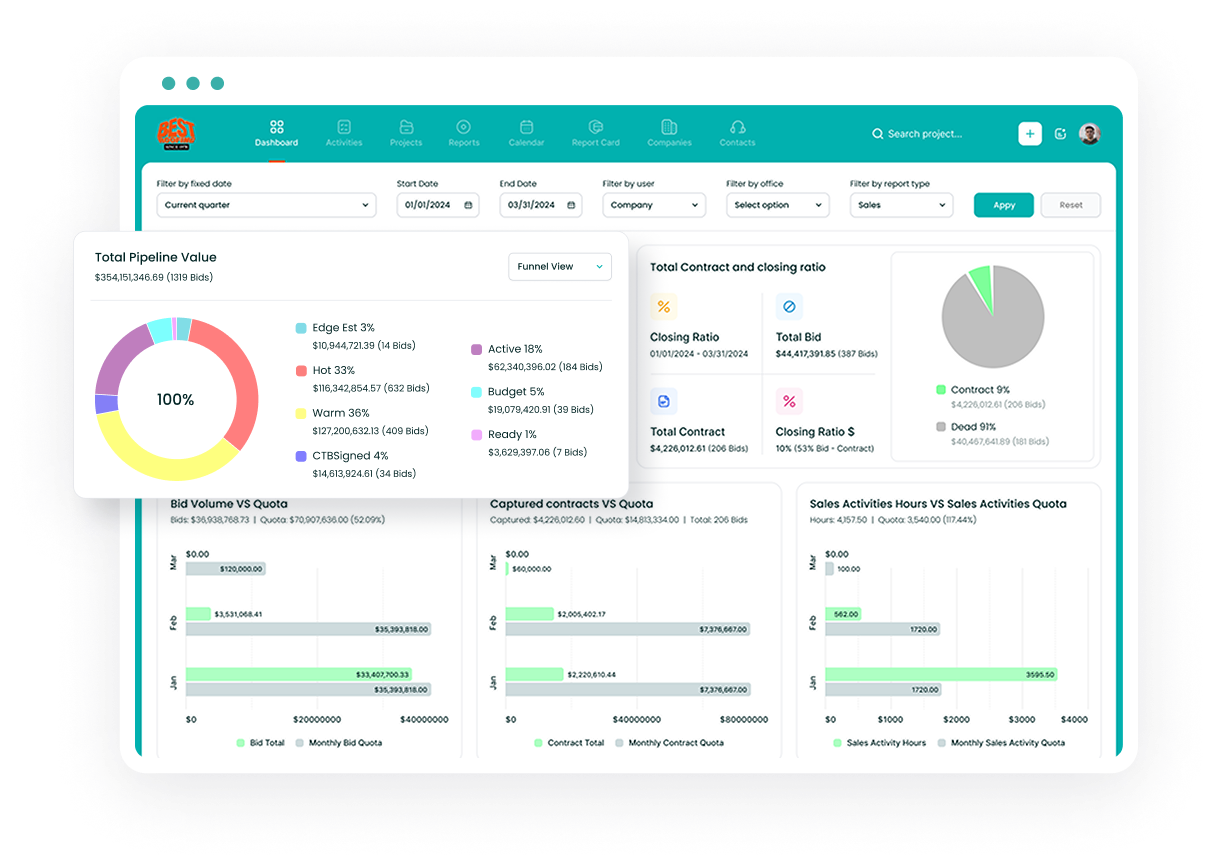
Followup CRM's Activities Page gives you a bird's-eye view of everything that's due and in motion across your projects. Think of it as your team's daily to-do list, but smarter.
From the Activities Page, you can:
If you're used to managing your workload across a spreadsheet or — worse — in your head, the Activities Page is one of those features you'll use every single day. It's particularly valuable when pipeline forecasting starts to matter and you need to know what's happening this week, this month, and next quarter.
The Bottom Line: Your CRM Should Be Your Communication Hub
Here's the thing about communication in construction: the teams that win aren't always the ones with the lowest price or the best crews. They're the ones who showed up consistently. They followed up. They responded fast. They knew what was going on with every project without having to make five phone calls to find out.
That's what a well-configured CRM gives you. Not magic — just visibility, consistency, and a lot less time wasted digging through your inbox.
If you're still managing construction sales communication across scattered spreadsheets, individual email accounts, and sticky notes, it's worth seeing what a purpose-built system looks like.
Book a free demo of Followup CRM and we'll show you exactly how teams like yours are using it to stay organized, follow up faster, and win more work.





.jpg)